
Member Management - Members
Add members
Section titled “Add members”Members can join your regiment in two ways: through the Discord bot using the !enlist command, or manually through the RegPoints web dashboard. Both methods create a member record and link it to your regiment.
Via Discord - /enlist
Section titled “Via Discord - /enlist”The /enlist command lets new recruits add themselves to your regiment directly from your Discord server. It automatically records their name, starting rank, and links their Discord account.
How a recruit uses /enlist
Section titled “How a recruit uses /enlist”Once open, a recruit runs the command in the appropriate channel:
/enlist
The bot will guide them through the enlistment process interactively, asking for their in-game name and other details.
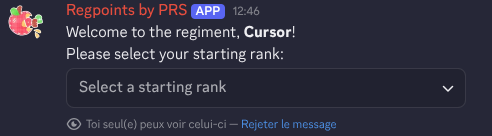
Upon completion:
- They are added to the regiment on RegPoints.
- Their Discord account is automatically linked to their member record.
- If configured, they receive a role and the report channel is notified.
Manually - Web Dashboard
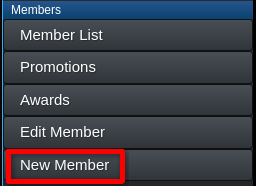
Section titled “Manually - Web Dashboard”If you need to add a member directly (without Discord), use the New Member page in the RegPoints dashboard.
-
Go to the ‘New Member’ category on the sidebar:
-
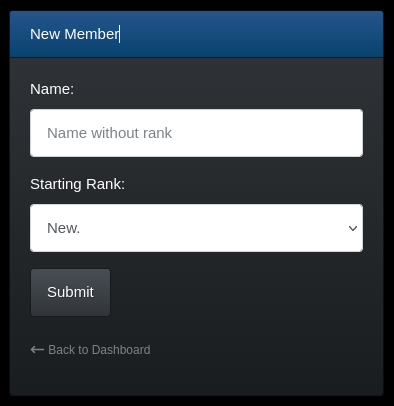
Enter the member’s name
Type the member’s in-game name without their rank.
-
Select a starting rank
Choose from the available starting ranks in the dropdown. Only ranks that are:
- marked as the default rank, or
- set to require 0 points
will appear as options. MWD (K9) ranks appear separately if your regiment has MWD enabled.
-
Submit
Click Submit. If successful, you’ll see a confirmation link to the new member’s profile.
Troubleshooting
Section titled “Troubleshooting”Member already exists: ⇾ Both methods will reject the submission if a member with that exact name already exists in your regiment. Check the member list before adding.
No ranks available in dropdown ⇾ If the starting rank dropdown on the manual form is empty, no ranks are set as default or have 0 points. Update your rank settings in the Manage Regiment page under the Ranks tab.
Bot can’t assign the role: ⇾ The bot’s own Discord role must be positioned above the recruit role in your server’s role list. Drag it higher in Server Settings ⇾ Roles.