
Getting started
Regiment Registration & Discord Bot Setup
Section titled “Regiment Registration & Discord Bot Setup”Welcome to RegPoints! This guide will walk you through registering your regiment and setting up the Discord bot integration step by step.
As an example, pictures will represent a fictional regiment being built.
WIP - Work In Progress, a construction themed regiscout.
Step 1: Creating Your Account
Section titled “Step 1: Creating Your Account”You firstly have to create your RegPoints account.
Create an account:
-
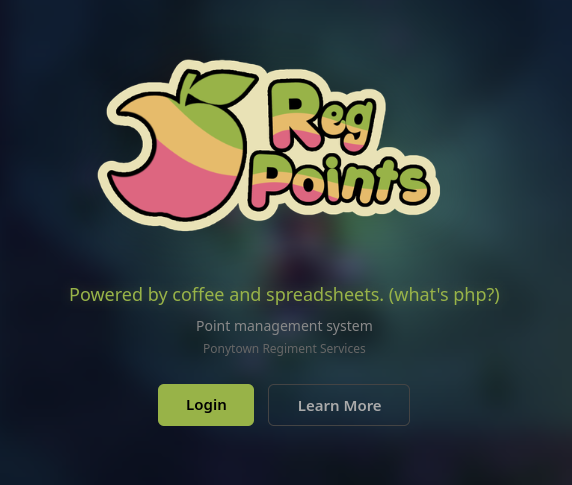
Go to regpoints.fr and click on the big logo to access the registration / login page.
-
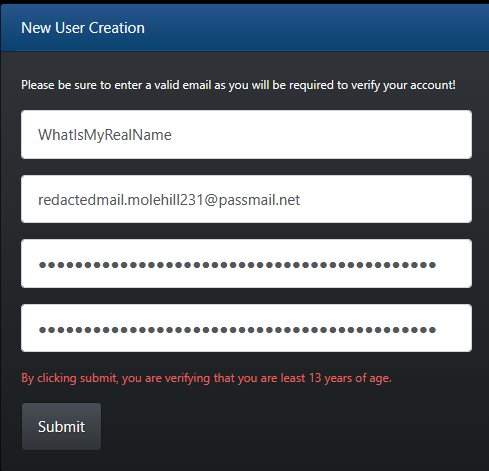
Click on ‘New User’ and fill out the registration form with:
- Email address
- Strong password
- Name or username
-
Click on the ‘Submit’ button to create your account.
-
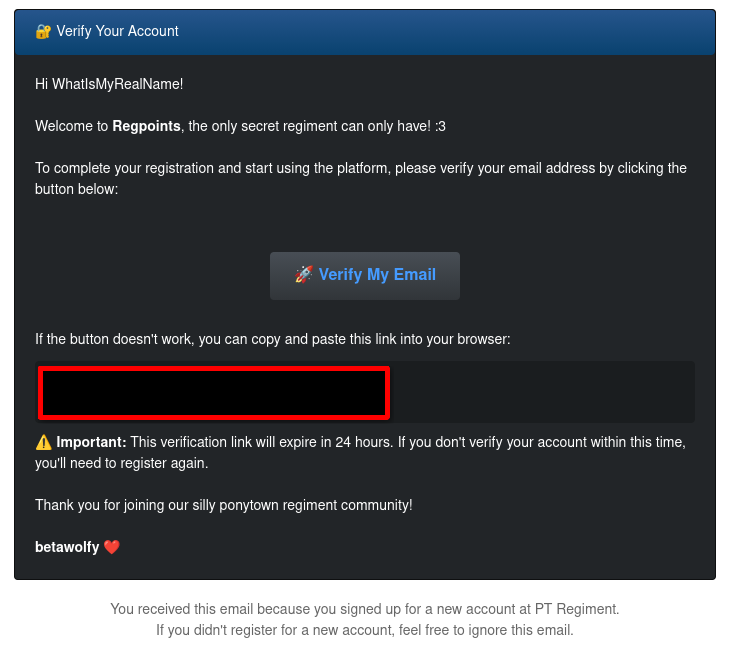
Check your email inbox for a verification email from RegPoints. it usually look like this:
Step 2: Registering Your Regiment
Section titled “Step 2: Registering Your Regiment”After creating your account and verifying your email, you can register your regiment.
Regiment Information Required:
- Regiment Name: Full name of your regiment;
- Short Description: Brief overview (1-2 sentences, including your theme for example)
- Leader Name: Primary leader/commander name
- Prefix: Short abbreviation (for example “WIP”,“PRS”, “AVU”)
- Long Description: Detailed information about your regiment
- Patrols are called: Choose your own way to name your activities
- Patrol Notes: Notes that will be displayed when you are creating a new patrol. Useful to give points giving instructions to your staff or noting a specific format for AFKs or Dismissal, for exemple.
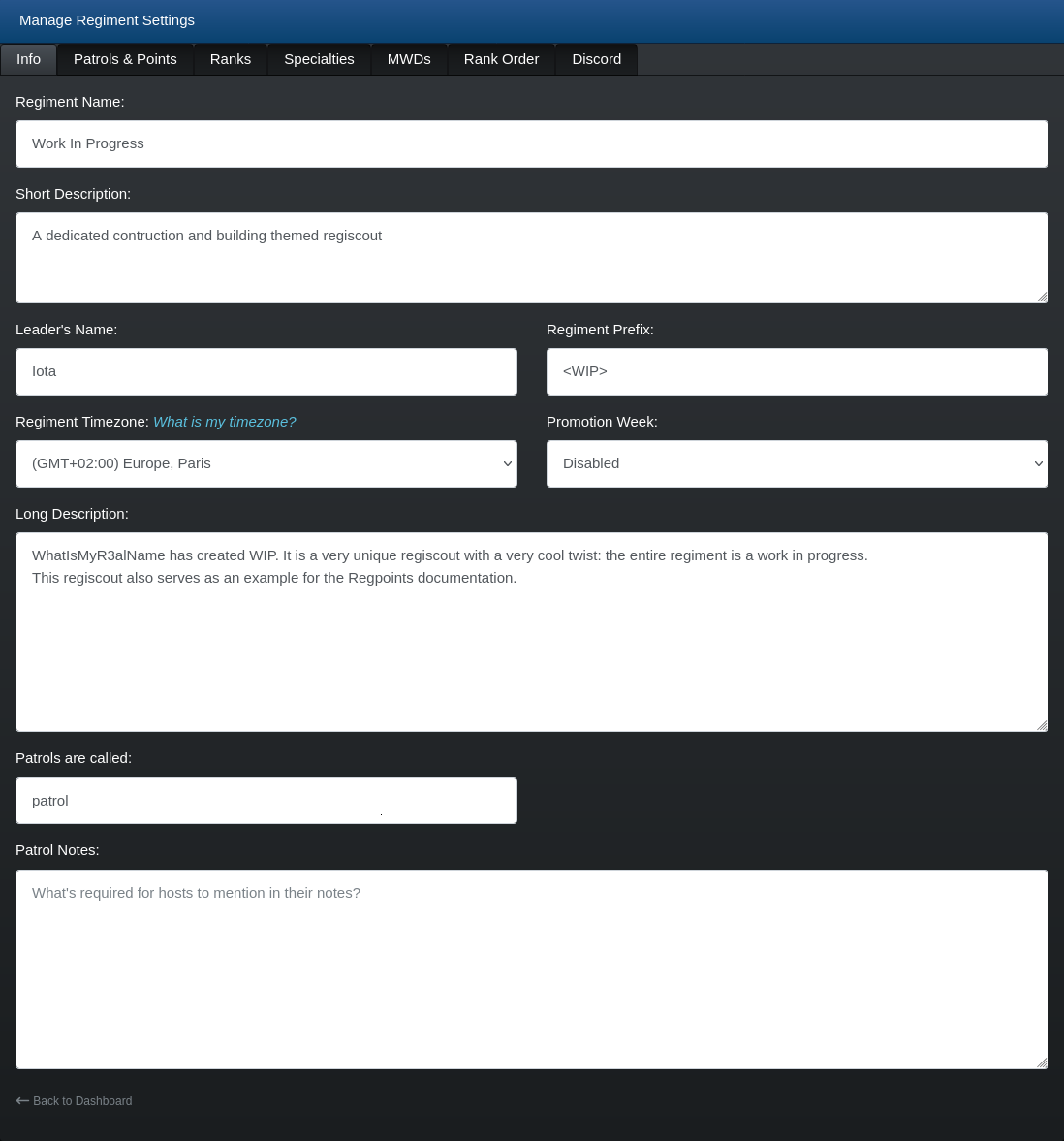
WhatIsMyRealName entering all info about WIP.
Step 3: Setting Up the Discord Bot
Section titled “Step 3: Setting Up the Discord Bot”Now comes the exciting part — linking your regiment with the Discord bot for seamless integration!
3.1: Inviting the Bot to Your Server And Linking Your Regiment
Section titled “3.1: Inviting the Bot to Your Server And Linking Your Regiment”-
Log into your RegPoints dashboard
-
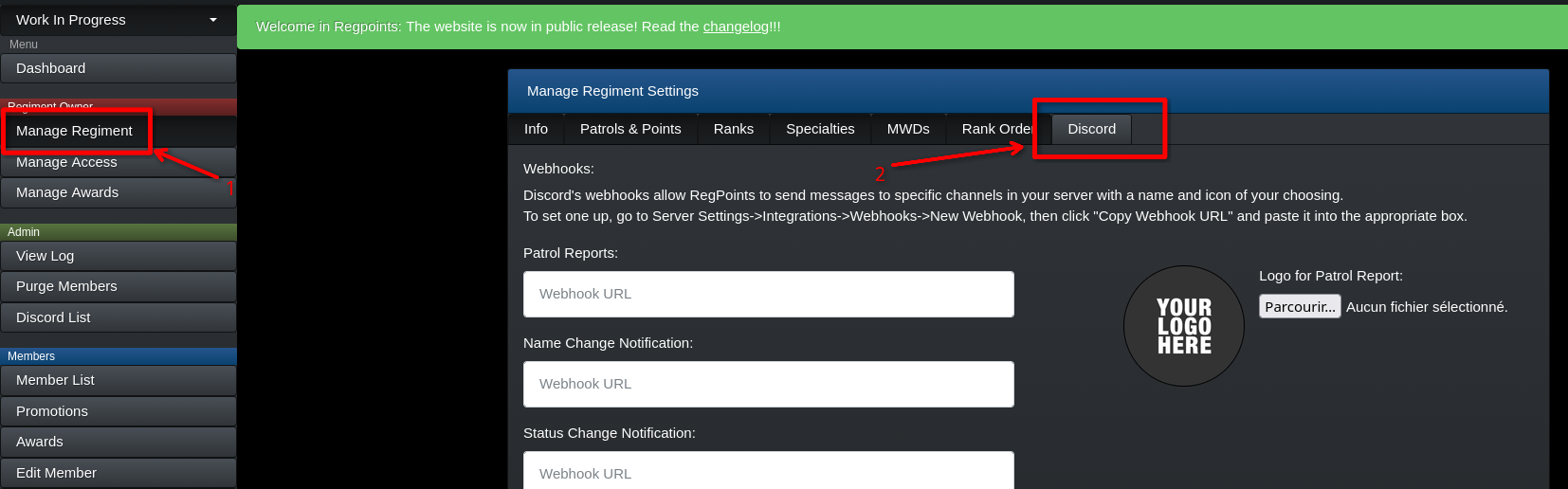
Go to Manage Regiment → Discord Tab
-
Scroll down, then click the
Click to invite Botbutton.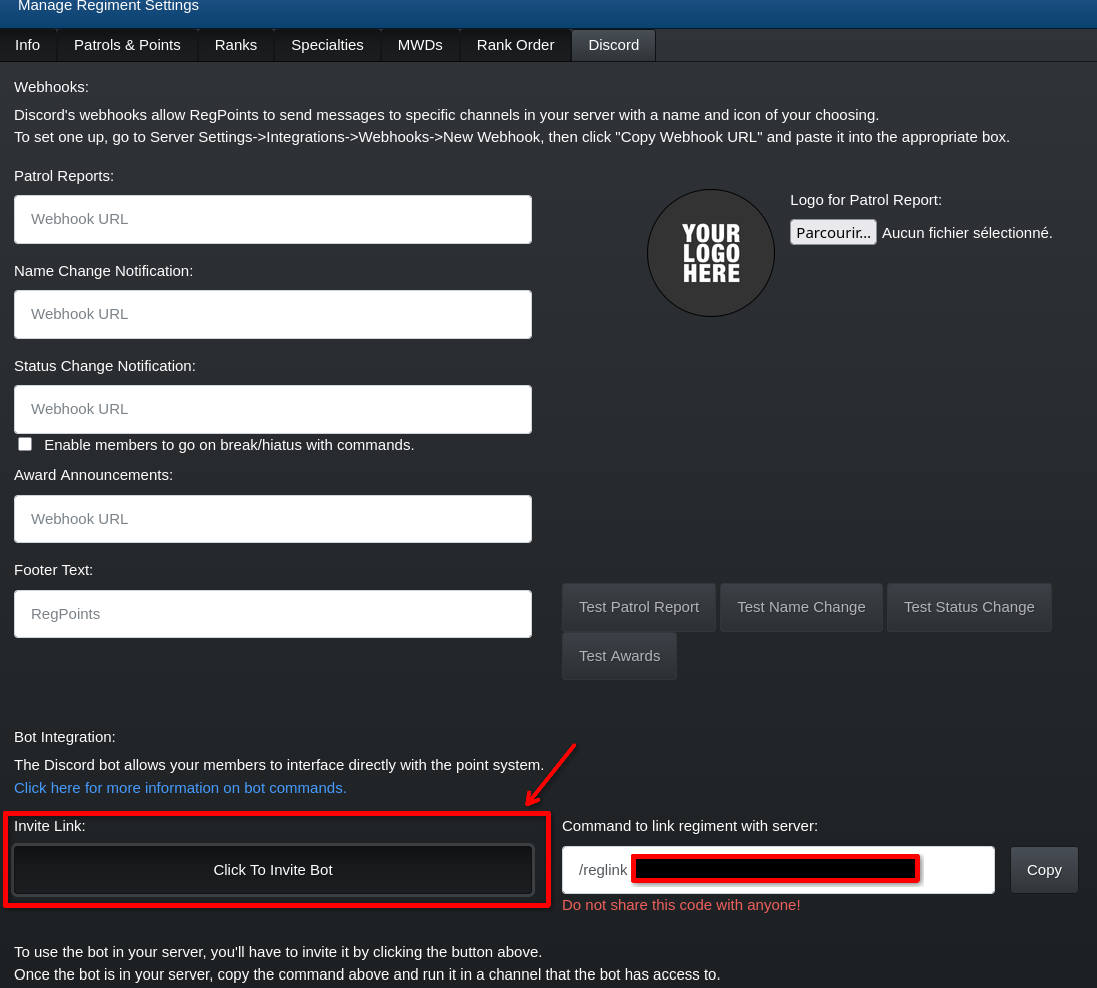
-
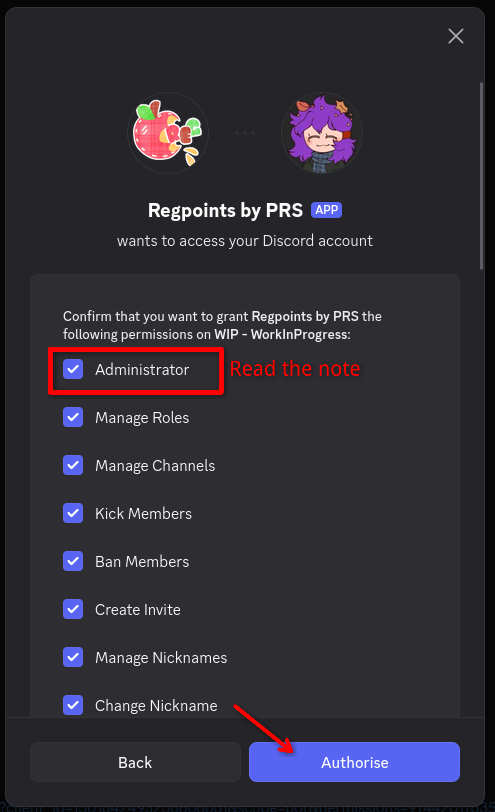
Then add the bot like you usually do with any other bot.
-
Near the button to invite the bot, Look for a
Reglinkcode.
Copy the command that looks like:/reglink [unique_code].
-
Go to your Discord server, and in any channel where the bot can read messages, paste and send the command.

-
The bot will confirm the successful link.
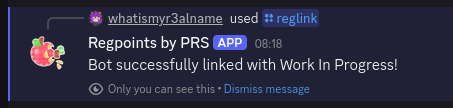
If the bot linking is successful, the dashboard will indicate “
Discord server has already been linked.” and the bot will send “Server successfully linked to [Regiment Name]!”.
Common issues
Section titled “Common issues”Bot doesn’t respond: ⇾ You should check if the bot has the correct permissions. If you are sure you may also check if the bot is online!
Invalid code ⇾ Maybe you didn’t copy the right code. Make sure you have copied the entire code on the dashboard.
Already linked ⇾ Your regiment dashboard may be already linked to another discord server.
Step 4: Testing Your Setup
Section titled “Step 4: Testing Your Setup”Let’s make sure everything is working correctly!
One quick way to see if the bot is linked is to run the /reginfo command.
If the bot is correctly linked, the bot will display a message such as this one!
Step 5: Configuring Bot Permissions
Section titled “Step 5: Configuring Bot Permissions”After linking, you’ll want to set up admin roles, so your staff can use administrative bot commands.
Setting Up Admin Roles
Section titled “Setting Up Admin Roles”Use these commands in your Discord server. Replace our examples with your own roles.
/admin add @Staff- Adds the @Staff role to admin list/admin add @Officers- Adds the @Officers role to admin list/reginfo- Shows current server configuration and admin roles