Manage your regiment
The Manage Regiment page is where regiment owners and administrators configure core settings: names, descriptions, points and patrol settings, ranks and specialties, MWD (K9) options, webhook integrations, and the Discord bot linking tools.
We will illustrate each tab and its options, along with visual examples of the interface.
Accessing the Manage Regiment Page
Section titled “Accessing the Manage Regiment Page”To access the Manage Regiment page: You may need first log in to your RegPoints account and select your regiment from the dashboard.
The “Manage Regiment” option should be visible in the sidebar menu. Click on it to open the management interface.
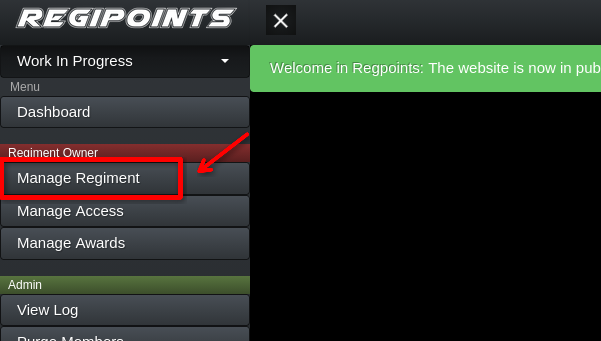
The “Manage Regiment” option in the dashboard sidebar menu
Quick Overview
Section titled “Quick Overview”You will find the page organized into several tabs. Each tab controls a different area of your regiment’s configuration. Changes are applied after you save the form at the bottom (or via the Save button in the floating prompt). If you navigate away with unsaved changes, you’ll be prompted to save or discard them.
Main Tabs
Section titled “Main Tabs”
The tabs of the Manage Regiment page.
The main tabs you will use are:
- Info - Regiment name, short and long descriptions, leader name, prefix and timezone.
- Points/Patrols - Default points, K9 (MWD) points, min/max patrol points, server names and purge settings.
- Ranks - Create and edit ranks, set branch names, colors, and promotion thresholds.
- Specialties - Add special titles that can override a member’s rank display.
- MWDs - Configure Military Working Dog ranks and modifiers.
- Order - Fine-tune how ranks are sorted in lists and promotion pages.
- Discord - Webhook fields, patrol report logo, webhook footer text, and the reglink command to connect your Discord server to the bot.
let’s explore each tab in detail.

Info Tab - Basic Regiment Details
Section titled “Info Tab - Basic Regiment Details”Use this tab to edit the core identity of your regiment.
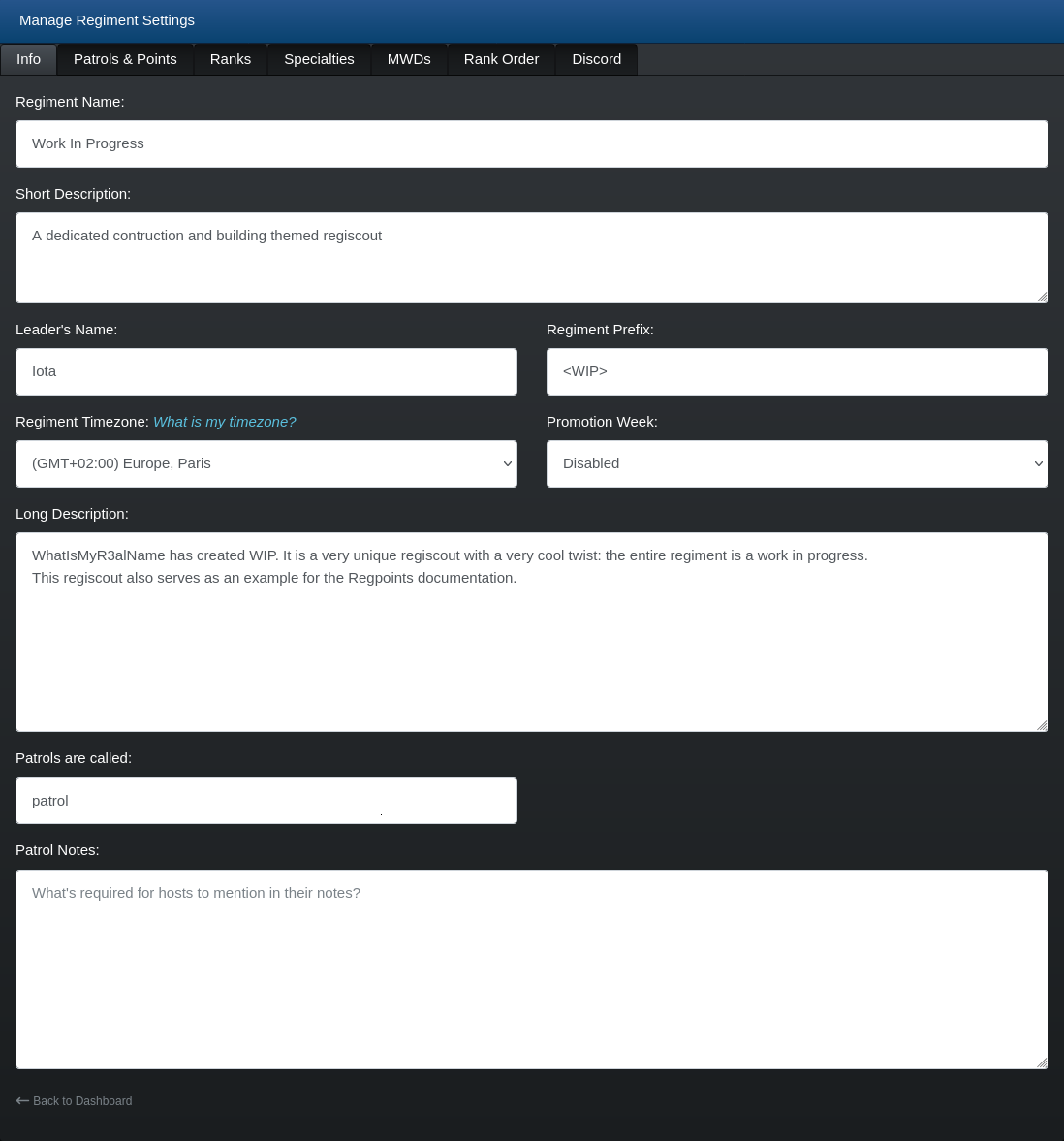
Regiment Name - The full name shown on public pages and the bot.
Short Description - A concise summary used on lists and previews.
Leader’s Name - Displayed as the regiment commander.
Prefix - Short tag used in some displays, typically 2–6 characters.
Timezone - Choose the regiment’s timezone. Dates and promotion calculations use this setting - pick the location that matches your leadership team.
Promotion Week - Controls when promotions are calculated (Disabled, Odd Weeks, Even Weeks, Last Week of Month).
Long Description - Use this for an in-depth regiment bio, rules, or history.
Patrols are called - Change the label used for patrols in your regiment (for example: “missions”, “shifts”, “activities”).
Patrol notes - add some instructions or notes that will be displayed on new patrol page.
Points/Patrols Tab - How Points Work
Section titled “Points/Patrols Tab - How Points Work”This tab controls how many points members earn and server-specific labels used in patrols.
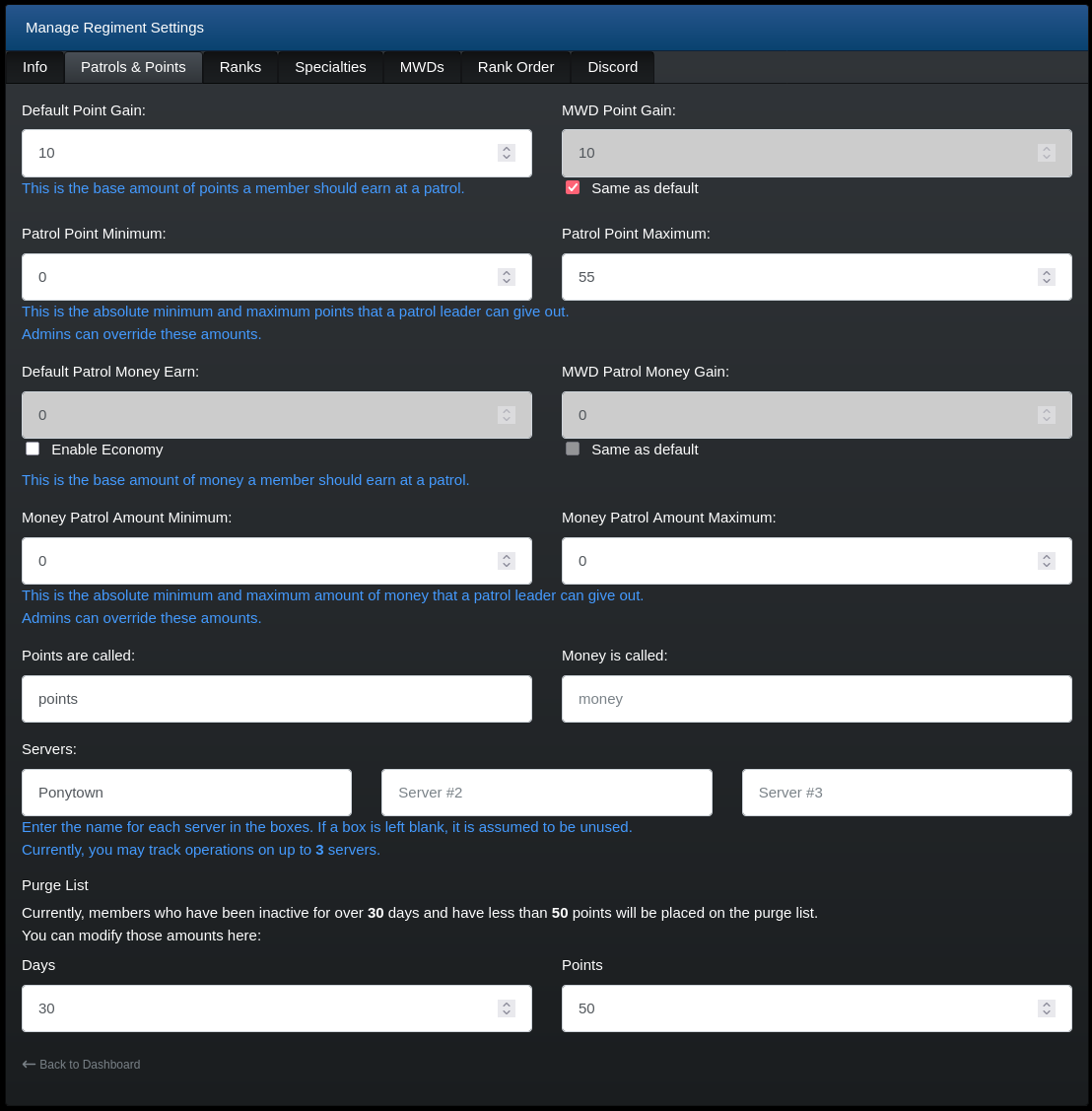
Default Point Gain - Base points awarded for a patrol. Patrol leaders use this as the starting value.
MWD Point Gain - Separate base points for MWD (K9) members; can follow the default value if you enable “Same as default.”
Patrol Point Min/Max - Absolute limits members can be awarded on a patrol (prevents accidental outlier values).
Enable economy - enable or disable the point economy for your regiment.
Default Patrol Money Earn - Set the default amount of money earned for a patrol.
MWD Patrol Money Gain - Separate default money earned for MWD (K9) members; can follow the default value if you enable “Same as default.”
Money Patrol Amount Minimum/Maximum - Absolute limits members can be awarded on a patrol (prevents accidental outlier values).
Points are called - You can rename “points” to any label your group prefers (for example: XP, credits, merit).
Money is called - You can rename “money” to any label your group prefers (for example: cash, coins, credits).
Servers - Label up to 3 server slots so patrols can be tied to a specific server name.
Can be used if your regiment operates in Ponytown, as well as in DustTown or other games.
Purge List - Configure how inactivity and low point totals create purge candidates: set the number of days and point threshold.
Ranks & Specialties Tabs - Promotions and Titles
Section titled “Ranks & Specialties Tabs - Promotions and Titles”Ranks determine promotion thresholds and the visual appearance of a member’s role. Specialties are titles that replace the rank display while still letting members earn points and promote.
Branches - Optional groups to split ranks (e.g., Army, Navy, Air). Members in a branch will promote along that branch path.
Rank List - You can add, edit and reorder ranks. The first rank in the list is the default for new members.
Points Required - Set the points a member needs to reach each rank.
Color, NCO, CO, Portal Access - Visual and permission flags: colors appear in lists, NCO/CO markers help sorting, and portal access controls whether the rank can log into regiment tools.
Specialties - Use when someone needs a persistent non-ranked title (e.g., “Drill Sergeant”). They do not affect point progression.
Guide : Editing Ranks
Section titled “Guide : Editing Ranks”-
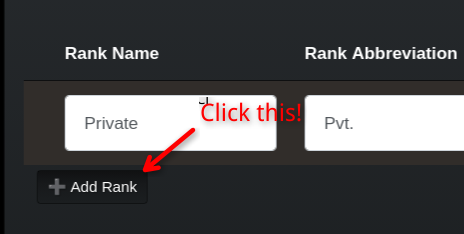
Click “Add Rank” to append a new row.
-
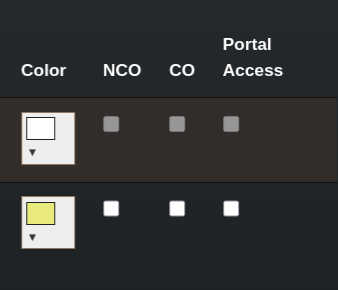
Fill in the rank name, abbreviation, branch, points required and color.

-
Use the NCO/CO checkboxes for higher-level sorting or permissions.
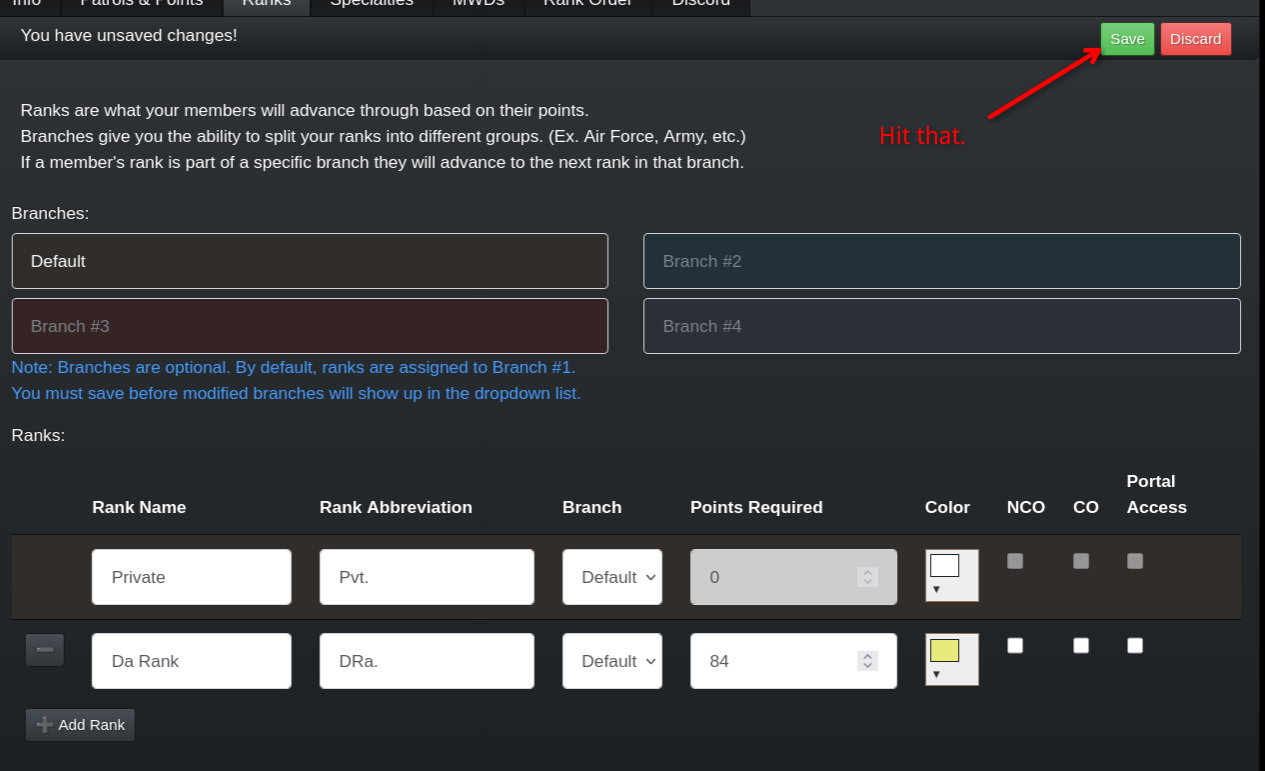
In my exemple, the ‘Da Rank’ rank is the rank after ‘private’.
-
Save the page to persist your changes.
-
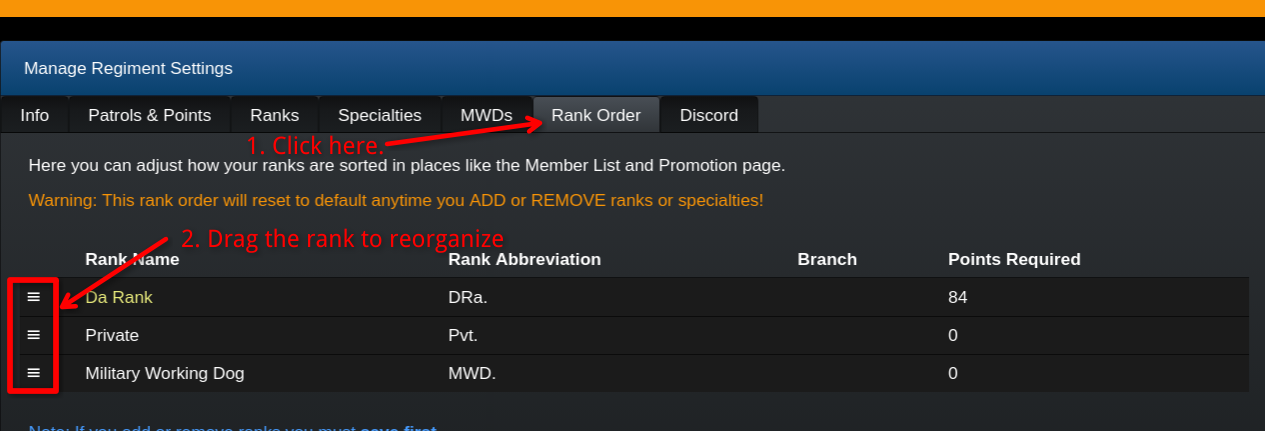
If you want to re-order, go to the ‘Rank Order’ tab and drag and drop ranks as needed.
MWDs Tab - Military Working Dogs (K9s)
Section titled “MWDs Tab - Military Working Dogs (K9s)”If your regiment uses MWDs (K9s), this tab lets you enable a separate rank track for them and add modifiers.
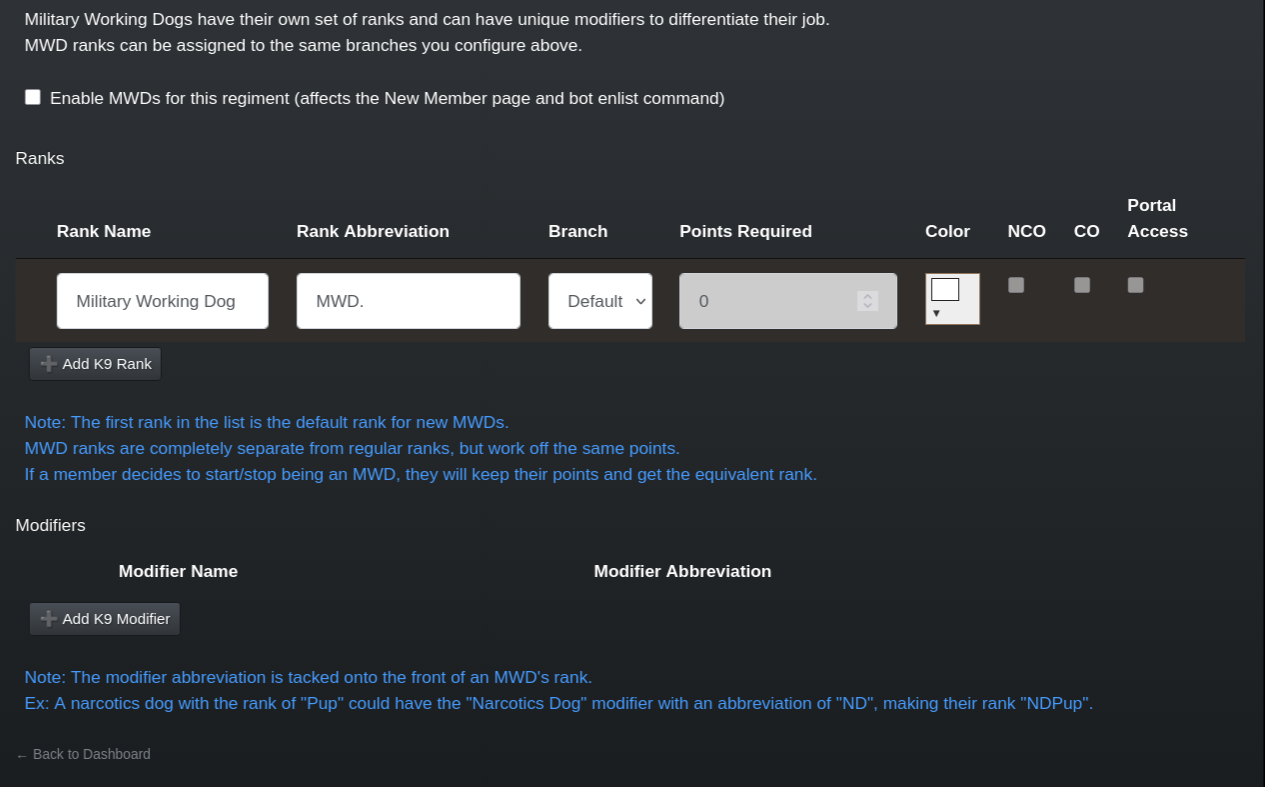
Enable MWDs - Toggle whether MWDs are supported for new members and the enlist flow.
K9 Ranks - Add ranks specific to MWDs (these use the same points pool but a separate rank table).
Modifiers - Short labels that are prefixed to a K9 rank (e.g., “ND” for Narcotics Dog).
Order Tab - Rank Sorting
Section titled “Order Tab - Rank Sorting”Use this area to adjust how ranks are displayed in lists and promotion workflows.
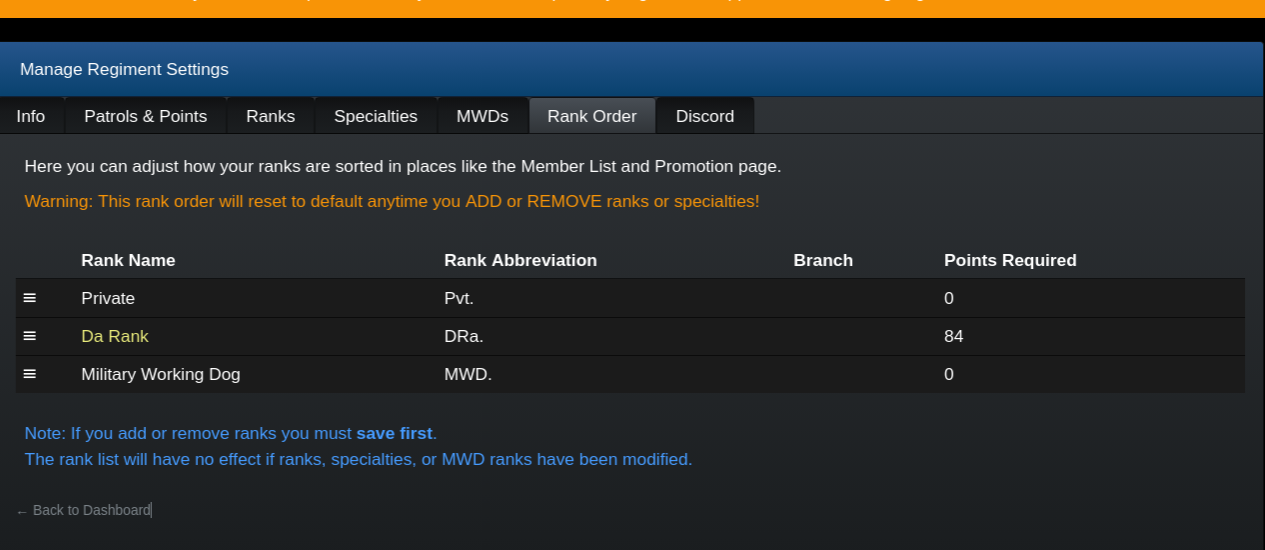
Drag-and-drop ordering may be available depending on your browser.
Discord Tab - Webhooks & Bot Linking
Section titled “Discord Tab - Webhooks & Bot Linking”This tab contains webhook fields and the reglink command used to connect the RegPoints bot to your Discord server.
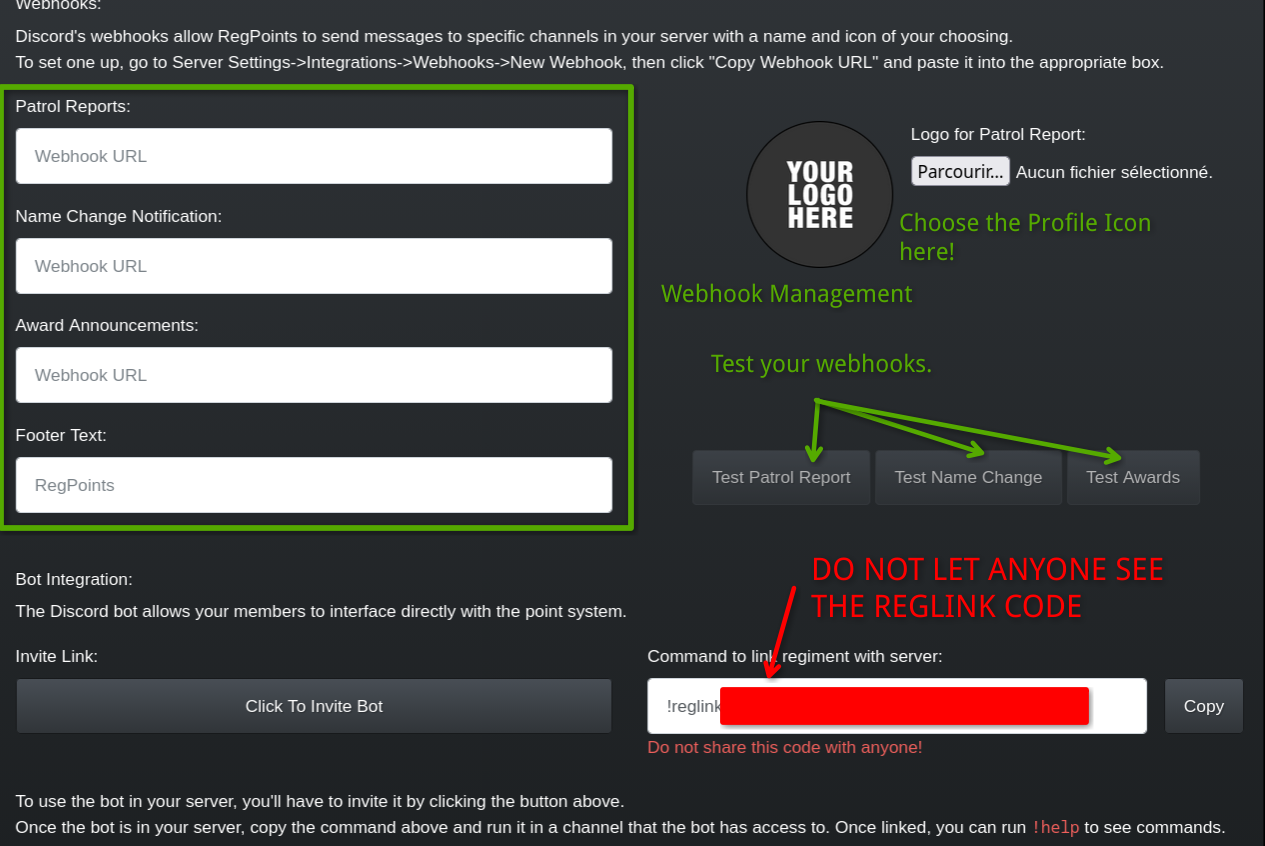
Webhook URLs - Paste webhook URLs for patrol reports, name change notifications, and award announcements. These will send formatted messages from RegPoints into your server channels.
Patrol Report Logo - Upload an image used as the embed icon in patrol reports.
Footer Text - Small footer text appended to webhook embeds.
Test Buttons - There are buttons to send a sample webhook to verify formatting. Use them after you paste a webhook.
Invite Bot - Click the “Click To Invite Bot” button to add the RegPoints bot to your Discord server. You must have appropriate Discord permissions to invite bots.
Reglink Command - Copy the reglink command (a secret code) and send it in a channel where the bot can read messages to link your server. Keep this code private; anyone with it can link a server to your regiment.

Deleting Your Regiment
Section titled “Deleting Your Regiment”If you wish to delete your regiment from regpoints, we will require the owner to contact us directly via email OR to open a ticket on the support.
We will require the following information to process your request:
- Regiment Name
- Reglink code